When a phone won’t charge, the cause is usually outside the phone: the outlet, the cable, the charger or lint in the port. Apple and Google both say to test in that order, give the phone 10 to 30 minutes on the charger, and only then force a restart. If nothing changes, it’s a repair job. The steps below cover iPhone, Pixel and Samsung Galaxy.
Check the outlet, cable and charger first
Swap one piece at a time so you know which one failed.
- The outlet. Plug the charger into a different outlet. Google suggests testing the outlet with something else, like a lamp.
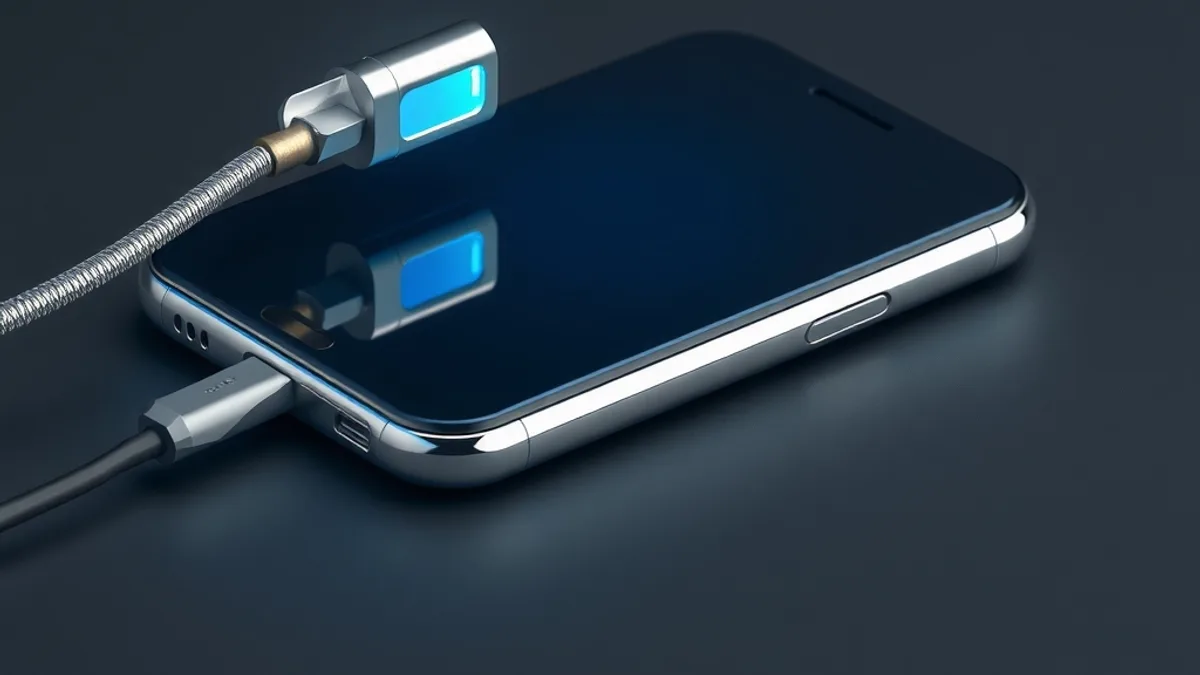
- The cable and adapter. Apple says to look for damage such as breaks or bent prongs, and to stop using any damaged accessory. Try a different cable and adapter.
- The connection. Apple asks you to make sure the cable, adapter and outlet are connected firmly.
- The case. Google says to remove your phone case, since it can get in the way of the charging plug or a wireless charger.
- The charger itself. To see whether it works, charge another device with it.
If the phone charges with a different cable, the old cable was the problem and you’re done.
Clean the charging port
Dust and lint build up in the port over time. A little doesn’t matter, but a buildup can stop the plug from seating properly. Apple and Google both tell you to clear debris from the port and then plug the cable in firmly.
Our advice: power the phone off, use something thin that isn’t metal, and don’t force it, so you don’t bend the contacts. If the cable barely goes in, debris is the likely reason.
Let it charge, then force a restart
A very drained battery can show no sign of life for a while. Each company gives its own timing:
- iPhone: Apple says to charge for about 30 minutes. If the screen stays dark or shows only a battery icon, force restart the phone and charge for another 30 minutes.
- Pixel: Google says to charge for 10 minutes and wait one more. If you see a battery icon, the phone is charging and you can restart it. If the battery was completely drained and unused for a long time, the phone may not respond for up to 25 minutes while plugged in.
To check charging on a Pixel, open Settings > Battery.
How to force restart
On an iPhone 8 or later and the iPhone SE (2nd generation or later), Apple describes this sequence: quickly press and release volume up, do the same with volume down, then hold the side button until the Apple logo appears.
On the iPhone 7 and 7 Plus, hold the side button and volume down until the logo appears. On the iPhone 6s or earlier and the first-generation iPhone SE, hold the side (or top) button and Home together.
On a Pixel, holding the power button for 5 to 7 seconds is Google’s first step. If no battery icon shows up with the cable connected, Google says to hold the power button for about 35 seconds to reboot, then wait about 2 minutes.
Samsung, Motorola and other brands use different combinations depending on the model. Look up yours on the manufacturer’s support page.
The moisture alert on Samsung Galaxy phones
Some Galaxy phones show a moisture warning and stop charging. According to Samsung, charging stays interrupted while there is moisture in the port, and water usually evaporates on its own within about 1 to 2 hours. If a liquid other than fresh water got in, Samsung says to rinse the port with fresh water and dry it thoroughly with a soft, dry cloth.
Samsung also says wireless charging isn’t affected by moisture or debris in the charging port, so a wireless pad is a fair workaround if your model supports one. Dry the phone completely before setting it on the pad.
The “accessory not supported” alert on iPhone
If your iPhone says the accessory isn’t supported or certified, Apple suggests connecting it straight to the charger with no adapters in between, cleaning the port and restarting. If that doesn’t work, try another USB cable or charger and update to the latest version of iOS.
When the screen stays black
If no battery icon appears after the waiting period, Google suggests calling the phone from another device or using Find Hub. If it rings but the screen stays blank, the screen or the board is the likely problem, and Google points you to an authorized repair center.
Google also lists a last resort for Pixel phones, Fastboot mode, which erases all data. Back up first and only try it after everything above. Before you hand the phone over for repair, our guide to backing up WhatsApp chats shows how to keep your conversations.
When to book a repair
If nothing worked, Apple points you to its “Get service” option, and Google suggests checking your replacement options and warranty status. Samsung offers in-person help at its service centers.
Bring the cable and charger you normally use, since the technician will test the whole setup, and tell them which tests you already ran. If the problem is a battery that drains fast even when it charges fine, that’s a different issue; our guide on how to make your phone battery last longer covers the settings that help.
FAQ
My phone only charges when the cable is at a certain angle. What does that mean?
A worn cable or lint in the port. Replace the cable and clean the port before anything else.
Can I use a charger from another brand?
It can work as a test as long as it isn’t damaged: Apple says to stop using any damaged accessory. On an iPhone, an uncertified accessory can trigger the unsupported alert described above.
How long should I wait before assuming it’s broken?
The manufacturers’ windows run from 10 to 30 minutes for first signs of life, and Google mentions up to 25 minutes of silence from a fully drained battery. After that, and after the tests above, it’s time for a repair.