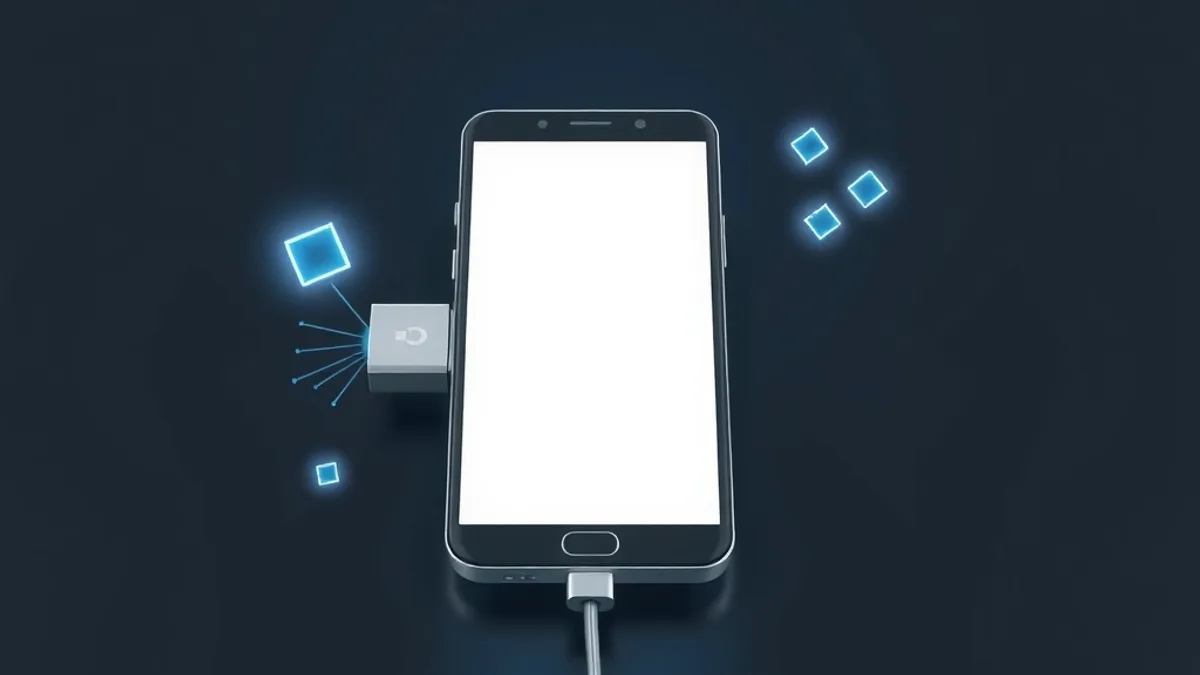
To transfer photos from your phone to a flash drive, plug the drive into the phone (with an adapter if the plugs don’t match) and copy the photos in a file manager app. On Android, Files by Google does it with the Copy to option. On an iPhone, there’s one extra hop: the photos go to the Files app first, then to the drive. You don’t need a computer or an internet connection.
What differs between phones is the plug, the drive’s format, and where the drive shows up on screen. The steps below cover both systems.
What you need before you start
- A flash drive that fits your phone. Most flash drives have the rectangular USB-A plug. Current phones use USB-C, so a USB-A to USB-C adapter solves it. Dual-connector drives with a plug on each end also exist.
- Android 7.0 or newer, if you’re on Android. That’s the minimum Google’s help page gives for accessing USB storage.
- An iPhone 15 or newer running iOS 17 or later, to plug a drive straight into the USB-C port, according to Seagate. Earlier iPhones have a Lightning port and need an adapter made for it.
- A compatible drive format. The iPhone supports HFS+, APFS, exFAT and FAT32 drives. It can read NTFS drives, the format many Windows-formatted drives use, but not write to them, per Seagate. If your drive is NTFS, copying photos onto it from an iPhone won’t work.
If the drive holds files you care about, don’t accept any “format” prompt your phone shows. Formatting erases everything.
How to copy photos from Android to a flash drive
Google’s recommended app is Files (Files by Google). It comes preinstalled on many phones and is free in the Play Store. Some phones also have a manufacturer file manager that works the same way, with similar menus.
- Plug the flash drive into your phone.
- Open the Files app.
- Tap the USB available notification. If your phone asks, tap the drive and then Allow.
- Go back to the app’s home screen and open the folder with your photos, such as Images or DCIM > Camera.
- If you don’t see a down arrow next to each file, switch to List view.
- For one photo, tap its down arrow, then Copy to. For several, tap the arrow, choose Select, check the circle on each photo, tap More, then Copy to.
- Pick the flash drive as the destination, open a folder if you want one, and tap Copy here.
If your goal is to free up space, use Move to and then Move here instead. That removes the photos from the phone. Open the drive on another device and confirm everything is there before you delete anything for good. If you’ve already deleted something by mistake, see how to recover deleted photos on your phone. Exact button names can shift a little with the app version and your phone’s language.
How to copy photos from an iPhone to a flash drive
The iPhone’s Photos app can’t see external drives. The route goes through the Files app, and it applies to an iPhone 15 or newer with a USB-C flash drive.
Step 1: Save the photos to Files
- In Photos, tap Select and pick your photos. Inside an album you can use Select All.
- Tap the share button and choose Save to Files.
- Under On My iPhone, create a new folder, such as “Photos for flash drive,” and save them there.
If you use iCloud Photos, your phone may keep optimized versions of your images. To copy the originals, turn on Download and Keep Originals in Settings > iCloud > Photos and let the download finish before you export.
Step 2: Copy from Files to the flash drive
- Plug the flash drive into the iPhone’s USB-C port.
- In Files, tap Browse and look for the drive under Locations. If it doesn’t show up, close and reopen Files or reconnect the drive.
- Open the folder with your saved photos, tap the three-dot menu, and choose Select.
- Check the files and tap the folder icon.
- Back out until you see all locations, choose the flash drive, make a folder if you like, and tap Copy.
During big copies, keep the app open and the screen unlocked. Wait for the copy to finish before you unplug the drive, as Seagate advises.
If your phone doesn’t see the flash drive
- Nothing shows up in Files. Unplug the drive, plug it back in, and open the app. On Android, that’s Google’s own advice. On an iPhone, closing and reopening Files often does it too.
- An “accessory requires too much power” message. The iPhone supplies limited power through its port, and power-hungry flash drives or SSDs may not work. A USB-C hub with its own power is the fix suggested on Apple’s support forums.
- The drive is NTFS. An iPhone opens it read-only. To write to it, the drive needs to be exFAT or FAT32, and reformatting erases the contents, so copy everything elsewhere first.
- The adapter doesn’t sit right. Try another adapter, or another port if your phone has more than one.
If what you really want is to switch phones, not just back up photos, our guide to transferring data to a new phone covers the full move.
FAQ
Can I copy photos from my phone to a flash drive without a computer?
Yes. You need a flash drive with the right plug, or an adapter, and the Files app. A computer only comes into play if the phone doesn’t recognize the drive or the drive’s format isn’t compatible.
Does copying photos to a flash drive delete them from my phone?
Not if you choose Copy. The photos stay in both places. They leave the phone only if you use Move to or delete them afterward.
What format does the flash drive need?
For an iPhone, exFAT or FAT32 work for both reading and writing. NTFS, common on Windows-formatted drives, is read-only on an iPhone.
Can I move videos the same way?
The process is identical. Videos are larger and take longer to copy, so check that the drive has enough free space before you start.