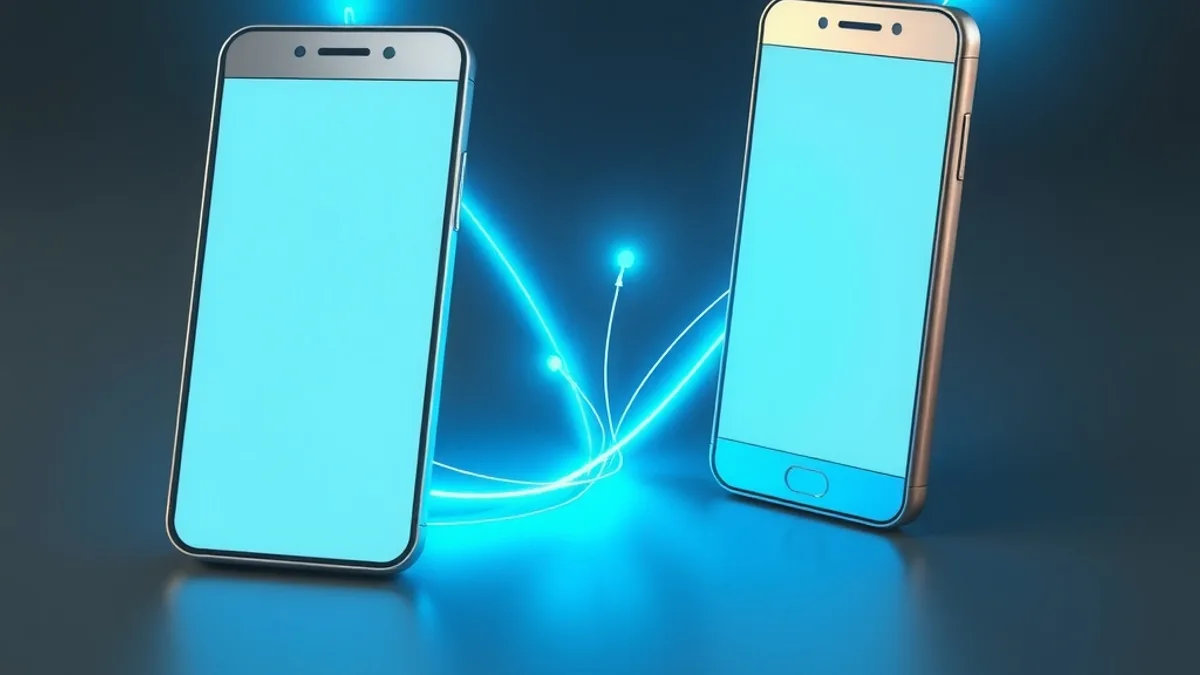
Switching phones is stressful for one reason: nobody wants to lose their photos, contacts and chats. Apple and Google both have built-in tools for this, and the right one depends on the phone you have now and the one you’re buying. This guide covers the three most common moves: iPhone to iPhone, Android to iPhone, and iPhone to Android.
Before you start, whichever way you’re going
A few things apply to all three:
- Charge both phones or keep them plugged in during the transfer.
- Connect to a stable Wi-Fi network.
- Make sure the new phone has enough storage for everything you’re bringing.
- Allow time. Google says a transfer usually takes under 30 minutes but can run a few hours.
- Do it during the new phone’s initial setup. For several methods, that’s the only time the option appears.
If you can, back up first. Our guide to backing up WhatsApp chats on Android and iPhone shows how to protect your messages, and our tips on blocking spam calls on your phone are worth a look once the new phone is running.
iPhone to iPhone
Apple’s method is called Quick Start. Per Apple’s requirements, the current device must run iOS 11 or iPadOS 13 or later. Apple recommends updating both to the latest software, keeping Wi-Fi and Bluetooth on for the old one, and keeping both phones close together and plugged in until it finishes.
- Unlock your current iPhone and stay on the Home Screen.
- Turn on the new iPhone and place it near the old one.
- Follow the on-screen prompts. If the setup prompt disappears, restart both phones.
- Connect the new phone to Wi-Fi or cellular and activate cellular service if prompted.
- Set up Face ID or Touch ID.
- Choose how to transfer: from iCloud or directly from the old phone.
The difference is practical. With iCloud, apps and data download in the background and you can start using the new phone right away. With a direct transfer, you have to wait for it to finish on both devices first.
Apple notes Quick Start isn’t available if the new device is enrolled in Apple School Manager or Apple Business. The page also mentions a wired transfer and restoring from an iCloud or computer backup as other options.
Android to iPhone
This is where the Move to iOS app comes in, available from Google Play. According to Apple, it only works during initial setup. If the iPhone is already set up, you have to erase it and start over, or move content manually.
First, turn on Wi-Fi on the Android phone and plug both phones in. A USB-C cable between them can speed things up. Update Chrome on Android if you want to bring bookmarks.
- On the new iPhone, at Quick Start, choose Set Up Without Another Device. You may need to activate an eSIM.
- On the Transfer Your Apps & Data screen, tap From Android, then Transfer with App.
- On Android, open Move to iOS. If you don’t have it, scan the QR code on the iPhone to reach the Play Store.
- Accept the terms and allow Location and Notification permissions if asked.
- On the iPhone, tap Continue and wait for a six-digit or ten-digit code. Enter it on the Android phone.
- The iPhone creates a temporary Wi-Fi network. Tap Connect on Android.
- Pick what to transfer and tap Continue. Keep both phones close, plugged in and untouched until the iPhone’s loading bar finishes.
- Tap Done on Android and Continue on iPhone to finish setup.
Apple says the app route carries contacts, message history, photos and videos, albums, files, bookmarks, mail accounts, calendars, call history, voice memos, and WhatsApp messages and media. Some free apps available on both stores are matched so you can download them from the App Store.
Music, books and PDFs have to be moved by hand. Apps generally don’t transfer, so you’ll download them again from the App Store.
There’s also an app-free route for phones running Android 17 or later on compatible devices. Tap From Android, then Transfer without App, hold the phones together and scan the iPhone’s QR code with the Android camera. That method brings photos, contacts, calendars, call history, messages and, if you select it, your eSIM.
If it fails, Apple suggests keeping the app open, avoiding calls and app switching, forgetting saved Wi-Fi networks on Android, restarting both phones and turning off cellular data on the Android phone.
iPhone to Android
Google’s steps vary by the new phone. First, turn off iMessage on the iPhone, or you may stop getting texts from friends. Keep the iPhone on Wi-Fi.
- QR code, on newer phones: on Pixel 8 and later, Galaxy Z Flip 8 and Galaxy Z Fold 8 running Android 17, choose iPhone or iPad and scan the QR code with the iPhone’s camera. This route copies more data types, including call history, files, passwords and passkeys, Wi-Fi networks and eSIM.
- Cable: connect the iPhone’s charging cable to both phones (you may need a USB-A to USB-C adapter), tap Trust on the iPhone, select data types and tap Copy.
- Wireless: requires iOS 15 or later. Install the Android Switch app on the iPhone, scan the QR code on the Android screen and keep the phones close. Samsung phones also have their own method.
Without a signed-in Google Account, apps, calendar events, notes and WhatsApp chats won’t transfer, Google says.
What gets left behind: photos and videos stored in iCloud, paid apps and in-app purchases, Safari bookmarks and Health data. Once you’re set up, switch from iMessage to Google Messages and move your iCloud photos to Google Photos.
What about WhatsApp?
Going from Android to iPhone, Move to iOS carries WhatsApp messages and media. Going from iPhone to Android, Google says you scan a QR code on your iPhone during setup and choose to transfer your chats and media. When it launched the feature, Google said it uses a cable and protects the data during the copy. You can also follow the prompt to copy your chat history after setup.
FAQ
Can I transfer data after the new phone is already set up?
With Move to iOS, no: Apple says the app only works during initial setup, and you’d have to erase the iPhone to try again. On Android, some things, like WhatsApp, can be copied afterward through the prompt that appears.
Do my apps come along?
Usually not. Apple says to download apps again from the App Store, and Google says paid apps and in-app purchases don’t transfer. Some app data may move depending on the method.
How long does it take?
Google says under 30 minutes in most cases, sometimes a few hours. Apple says it depends on network conditions and how much data you have.
What if the transfer gets stuck?
Restart both phones, keep Wi-Fi on, keep them close and plugged in, and try again. For Android to iPhone, turn off cellular data on the Android phone before retrying.